Smart Canon G3010 Ink Tank Printer Guide

The Canon G3010 Ink Tank Printer is a practical all-in-one option for Sri Lankan homes, tuition teachers, students, small offices and growing businesses that print often but still need colour output. From my experience assessing printers for everyday workloads, the best purchase is rarely the model with the lowest shelf price. It is the machine whose print volume, connectivity, ink availability and maintenance routine match the way people actually work.
That distinction matters in Sri Lanka. A printer may serve several family members, handle school material during the week and produce invoices or promotional sheets for a small business at the weekend. Electricity interruptions, Wi-Fi changes, humid weather and long gaps between print jobs can also shape the ownership experience. Therefore, this guide looks beyond a list of specifications and explains how to judge the printer as a working tool.
Featured definition
The Canon G3010 Ink Tank Printer is a refillable, wireless all-in-one inkjet that prints, scans and copies. It suits regular home and small-office colour printing because it combines visible ink tanks, mobile connectivity and high replacement-bottle yields in one compact unit, although it lacks automatic duplex printing and an automatic document feeder.
Table of contents
Canon G3010 Ink Tank Printer overview
Canon positions the PIXMA G3010 as a refillable ink-tank wireless all-in-one for high-volume printing. The official specification lists print, scan and copy functions, Wi-Fi and Wireless Direct, a recommended monthly print volume of 150 to 1,500 pages, and ISO document speeds of up to 8.8 images per minute in monochrome and 5 images per minute in colour. Those figures give a useful comparison point, but real throughput changes with document complexity, connection method, paper type and quality mode.
For verified technical details, see Canon's official PIXMA G3010 specifications. Canon lists a maximum print resolution of 4,800 by 1,200 dpi, a flatbed contact image sensor scanner with 600 by 1,200 dpi optical resolution, a rear tray that accepts up to 100 sheets of 64 gsm plain paper, and USB 2.0 alongside 2.4 GHz Wi-Fi.
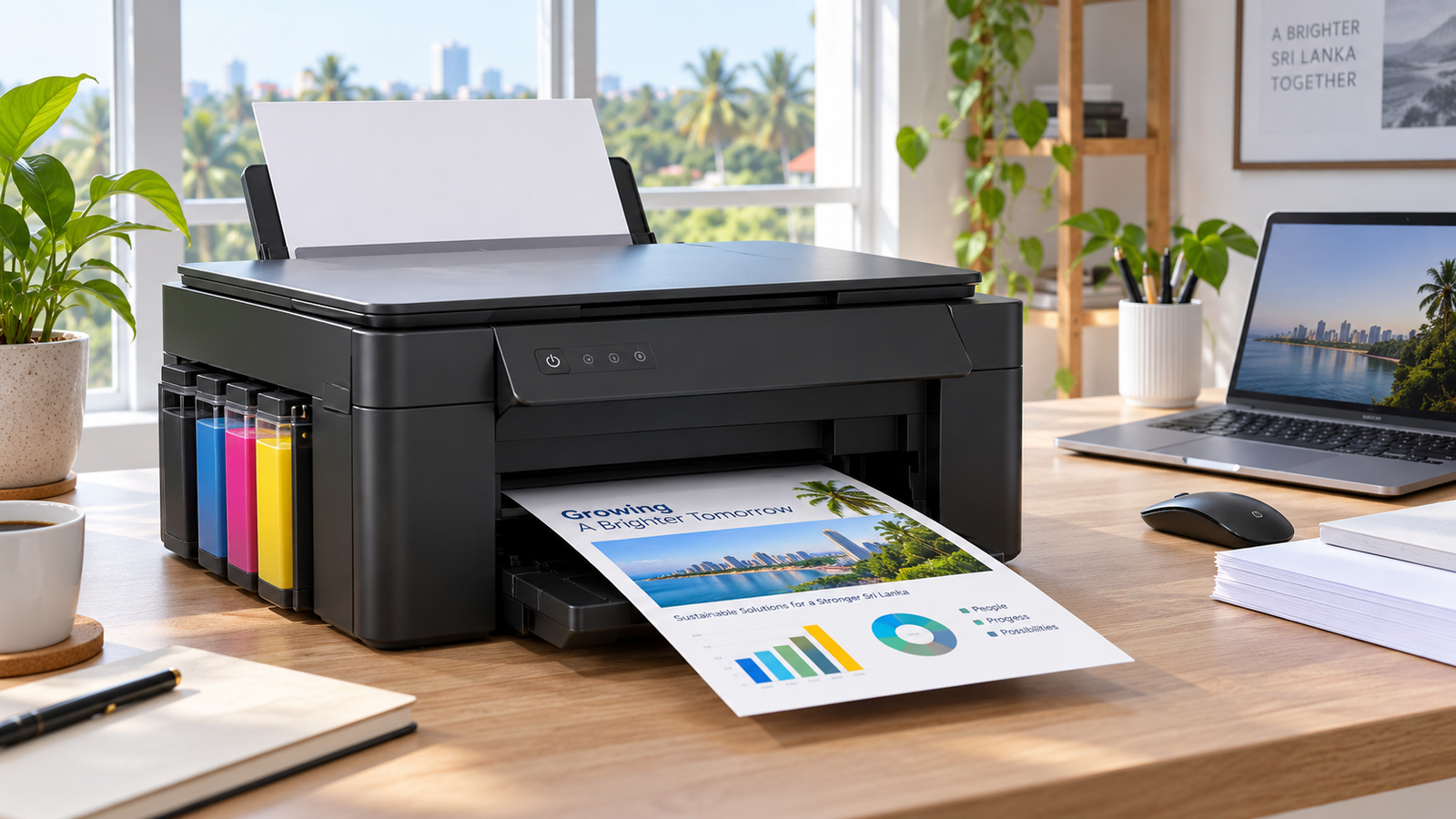
The integrated tanks are visible from the front, so users can check ink levels without opening the machine or relying only on software. The model uses GI-790 bottles: pigment black for text and dye-based cyan, magenta and yellow for colour. Canon's declared replacement-bottle yields are up to 6,000 A4 pages for black and 7,000 pages for a composite set of colour bottles. These are test estimates, not promises. Coverage, print settings, cleaning cycles, temperature, humidity and printing frequency all affect yield.
Canon G3010 specifications at a glance
| Area | Canon G3010 detail | Why it matters |
|---|---|---|
| Core functions | Print, scan and copy | Covers routine document and image tasks without separate devices |
| Connectivity | USB 2.0, Wi-Fi and Wireless Direct | Allows a cable connection, router-based sharing or direct mobile printing |
| ISO speed | Up to 8.8 ipm black and 5 ipm colour | Adequate for regular home and small-team work, but not a fast departmental printer |
| Scanner | Flatbed CIS, 600 x 1,200 dpi optical | Good for individual A4 sheets, photos and ID copies; no automatic feeder |
| Paper input | Rear tray, up to 100 plain A4 sheets at 64 gsm | Simple to load, though frequent high-volume jobs need supervision |
| Declared yield | Up to 6,000 black or 7,000 colour pages with replacement bottles | Can lower refill frequency when print volume is consistent |
| Duplex | Manual two-sided printing workflow | Users must turn and reload pages for double-sided output |
| Operating system note | Check current Canon support before purchase | Driver availability matters, especially for newer computers |
Who is the Canon G3010 Ink Tank Printer for
The model makes the most sense when colour and black printing are both routine. A tuition teacher who prepares worksheets, a student household that prints assignments, a microbusiness that produces invoices and simple flyers, or a home office that scans signed documents can use all three functions. Wireless printing also reduces the need to move files to one dedicated computer.
However, the Canon G3010 Ink Tank Printer is not ideal for every workflow. A busy accounts department printing large stacks of monochrome records may prefer a faster laser printer with automatic duplexing. A reception desk that scans multipage forms repeatedly may need an automatic document feeder. A photographer seeking consistent colour-managed exhibition prints may need a more specialised photo printer. Matching the device to the job prevents disappointment after the initial price comparison.
Typical Sri Lankan use cases
- Home learning: worksheets, notes, past papers, forms and occasional colour projects.
- Tuition classes: moderate batches of handouts where refillable ink can reduce interruptions.
- Small retail and service firms: invoices, quotations, labels, forms and promotional sheets.
- Remote work: signed-page scanning, reference documents and occasional presentation printing.
- Creative home use: borderless photos, greeting cards and school craft material on supported media.
Before buying, estimate a normal month rather than an unusually busy week. Count both pages and jobs. Fifty separate one-page jobs create a different experience from one fifty-page batch because start-up, cleaning and paper handling occur differently. Also decide whether colour is essential. If almost everything is black text, compare the total cost and speed of a monochrome laser alternative.
Ink tank economics and realistic running costs
Ink-tank printers replace small sealed cartridges with refillable reservoirs. The main advantage is more ink per refill and easier visibility of remaining levels. Still, cost per page should be treated as an estimate. Divide the current bottle price by a realistic yield based on your documents, then include paper, electricity, maintenance ink, cleaning pages and possible service costs. Do not divide by the headline yield alone and call the result a guaranteed cost.
The first bundled bottles will normally produce fewer pages than later replacements because initial setup uses ink to fill the print-head system. In addition, the printer can consume small amounts of colour ink during maintenance even when users mainly choose black or greyscale. Canon also advises keeping tanks above the lower-limit line. These operating details explain why two households with the same printer may report different refill intervals.
A simple cost comparison method
| Cost factor | Ink-tank all-in-one | Monochrome laser | What to compare |
|---|---|---|---|
| Upfront price | Often higher than a basic cartridge inkjet | Varies by speed and features | Use the current local price, warranty and included supplies |
| Colour output | Standard feature | Usually unavailable on mono models | Decide whether colour is a real monthly need |
| Refill cycle | Bottle-based with visible tanks | Toner cartridge or refill | Compare genuine supply price and local availability |
| Speed | Moderate | Often faster for black text | Time a realistic batch, not one isolated page |
| Long idle periods | Nozzles may need cleaning | Generally tolerant of gaps | Consider how frequently you will print |
| Scanning and copying | Included | Only on multifunction models | Price the complete workflow, not printing alone |
For a fair three-year estimate, multiply your expected monthly pages by 36, estimate how many black and colour bottle sets that volume may require, and add paper and a reasonable service reserve. Label the result as an estimate. Then repeat the exercise for two alternatives. This method is more useful than comparing discount percentages because it reflects your actual mix of text, graphics and colour.
Print quality for documents and photos
For routine text, pigment black is a sensible design choice because it generally produces stronger plain-paper text than dye black. The 4,800 by 1,200 dpi maximum resolution describes the printer's dot-placement capability, but resolution alone does not guarantee a better page. Paper coating, original image quality, driver mode and nozzle condition often influence the result more visibly.
Colour output is suitable for school projects, charts, handouts and everyday photographs. Borderless printing is supported on selected sizes up to A4, according to Canon. For photos, use supported photo paper and select the matching media setting. Printing on ordinary copier paper with a photo-paper setting can oversaturate the sheet, slow output and cause handling problems.
A practical quality test should include small black text, a grey gradient, skin tones, a saturated colour block and a fine line chart. Review the page in daylight after it dries. Look for banding, muddy neutrals, feathered text and unexpected colour shifts. If lines are missing, run a nozzle check before repeated deep cleaning because unnecessary cleaning consumes ink.
Scanning and copying in daily use
The flatbed scanner is useful for single sheets, receipts, photographs, ID documents and pages from books that can sit safely on the glass. Its 600 by 1,200 dpi optical resolution is sufficient for common office archiving and document sharing. Nevertheless, a flatbed requires each page to be placed manually, so it is less efficient for large multipage files.
Choose scan resolution by purpose. Around 300 dpi is commonly adequate for readable documents, while higher settings suit photographs or small originals that may be enlarged. Higher resolution also creates larger files and longer transfer times. For searchable records, scanning software with optical character recognition can be useful, but the final accuracy depends on the application, language, page condition and layout.
When copying identity documents or forms, check scale and edge placement before producing multiple copies. The copier supports up to 20 copies in a run, yet sensitive documents should not be left on the glass or in an unattended output tray. Businesses should also follow their own data-handling practices when storing scanned personal information.
Wireless setup for Sri Lankan homes and offices
The Canon G3010 Ink Tank Printer supports 2.4 GHz IEEE 802.11b/g/n Wi-Fi and Wireless Direct. A router-based connection is convenient when several authorised devices share the printer. Wireless Direct can connect a phone or computer to the printer without using the normal Wi-Fi network, which is helpful during setup or when router access is unavailable.
However, Wireless Direct may temporarily interrupt a phone's internet connection because the phone is connected to the printer's local network. In an office, use a protected network and avoid sharing access details publicly. Position the printer where the wireless signal is stable, but keep enough space to open the scanner lid, load rear paper and extend the output tray.
Driver and application support can change over time. Before relying on a new computer or phone, confirm the latest software through Canon's regional support portal. The product specification page currently lists Windows and ChromeOS support while noting that macOS is not supported for this model, so Mac users should verify their exact workflow before purchase rather than assuming full driver compatibility.
Canon G3010 wireless setup checklist
- 1. Choose the connection method. Use USB for one fixed computer, normal Wi-Fi for shared access, or Wireless Direct for a temporary device-to-printer link.
- 2. Place the printer within a strong 2.4 GHz signal area and near a stable power source. Avoid a cramped shelf that blocks ventilation or paper paths.
- 3. Complete physical setup first. Remove packing material, install print heads, fill the correct tanks and run the printer's initial preparation exactly as instructed.
- 4. Install the current Canon software or approved mobile app on each device that needs access. Confirm the operating system is supported.
- 5. Connect the printer to the intended network and record the chosen network name for future troubleshooting.
- 6. Print a nozzle check and a one-page wireless test. Then scan a page back to the main device to confirm the full workflow.
- 7. Set sensible defaults such as A4 paper, standard quality and greyscale for routine drafts. Select photo or high-quality modes only when the job needs them.
- 8. Explain the refill and paper-loading routine to other users. A shared printer lasts longer when everyone knows the lower ink limits and supported media.
Paper handling and productivity limits
The rear tray supports common sizes including A4, A5, B5, Letter, Legal, envelopes, several photo sizes and custom media within Canon's stated limits. Rear feeding can be helpful for thicker speciality sheets because the path is relatively direct. Even so, users should confirm the paper's weight, coating and inkjet compatibility before loading an entire pack.
The Canon G3010 Ink Tank Printer does not provide automatic duplexing. For double-sided documents, print one side, reorder the stack correctly and feed it again. Test with two sheets before attempting a long document because page orientation and sequence vary by application. Allow ink to dry, especially on high-coverage pages, to reduce smearing during the second pass.
There is also no automatic document feeder. That limitation is minor for occasional scans but significant for weekly batches of contracts, applications or receipts. Similarly, the 100-sheet plain-paper capacity is reasonable for home use but requires attention during large jobs. These constraints do not make the machine poor; they define the workload it handles comfortably.
Buying checklist in Sri Lanka
Prices and stock can change quickly, so treat any online listing as a snapshot. Confirm the exact model code, included print heads, full bottle set, power cable, warranty documents and seal condition. Ask whether the warranty is local and who handles authorised service. Keep the invoice and serial details in a safe place.
- 1. Verify the exact Canon G3010 model and box contents before payment.
- 2. Confirm the current warranty period, service location and whether transport is included.
- 3. Check the price and availability of genuine GI-790 black, cyan, magenta and yellow bottles.
- 4. Match the printer to your computers and phones, especially if macOS is part of the workflow.
- 5. Estimate monthly black and colour page volumes and compare them with Canon's recommended 150 to 1,500-page range.
- 6. Decide whether automatic duplexing or an automatic document feeder is essential. If so, compare another model before buying.
- 7. Inspect available space: the output tray extends forward and the rear tray needs clearance above and behind.
- 8. Ask for a setup demonstration or test page when practical, then retain the packaging until initial checks are complete.
- 9. Use a suitable surge protector or uninterruptible power supply if local power quality is a concern, following the electrical equipment maker's ratings.
- 10. Compare total ownership cost, not only the promotional selling price.
Care in warm and humid conditions
Canon specifies an operating range of 5 to 35 degrees Celsius and 10 to 90 per cent relative humidity without condensation, with a recommended environment of 15 to 30 degrees Celsius and 10 to 80 per cent relative humidity. In Sri Lanka, a ventilated indoor location away from direct sun, cooking vapour, open windows during heavy rain and dusty floors is sensible.
Print regularly enough to keep ink moving through the nozzles, but do not run cleaning cycles without evidence of a problem. Keep paper sealed until needed because humid paper can curl, feed poorly and absorb ink unevenly. Fan only the quantity you plan to load, align the guides without squeezing the stack and return unused sheets to their wrapper.
Turn the printer off using its power button so it can park the print head correctly. Avoid cutting power at the wall while it is operating. If print quality changes, start with a nozzle check, confirm ink levels and paper settings, and follow the official maintenance sequence. Repeated aggressive cleaning can waste ink and may not solve a paper or driver problem.
Resource use also depends on user habits. The ENERGY STAR imaging equipment guidance recommends considering power-management features and reducing unnecessary paper use. Preview jobs before printing, choose draft quality for internal material when suitable, and use manual two-sided printing carefully for documents that do not require single-sided pages.
Common mistakes to avoid
- Buying only on headline yield without estimating your mix of black, colour and high-coverage pages.
- Letting any tank drop below the lower-limit line or pouring ink into the wrong colour reservoir.
- Assuming every phone and computer will connect without checking current software support.
- Using photo settings on plain paper or loading damp, curled or unsupported media.
- Running repeated deep-cleaning cycles before checking nozzles, settings and paper.
- Starting a large manual-duplex job without testing page order and drying time.
- Placing the printer in direct sun or against a wall that blocks tray movement and ventilation.
- Leaving confidential scans, originals or printed pages unattended.
People also ask
Is the Canon G3010 good for home use in Sri Lanka
Yes, it can be a strong fit for homes that print regularly and need colour, scanning and copying. It is less compelling for very rare printing or for users who require automatic double-sided output and fast multipage scanning.
Can the Canon G3010 print from a phone
Yes. It supports Wi-Fi, Wireless Direct and mobile printing solutions. Confirm that the current Canon app supports your phone and follow the official setup process for the chosen connection method.
How many pages can Canon G3010 ink bottles print
Canon declares up to 6,000 A4 pages for replacement pigment-black ink and 7,000 pages for a composite colour set under its test method. Actual results vary with coverage, settings, maintenance, environment and printing frequency, while initial bundled ink yields less after system filling.
Does the Canon G3010 print on both sides automatically
No. Two-sided printing is a manual process: print one side, reorder and reload the pages, then print the reverse. Test the orientation first to avoid wasting a long document.
Does the Canon G3010 support macOS
Canon's current regional specification states that macOS is not supported for this model. Because software availability changes, Mac users should verify the exact operating-system version and intended print-and-scan workflow through Canon support before buying.
Expert Q&A
What monthly volume best suits this printer
Canon recommends 150 to 1,500 pages per month. That range is a guide for intended usage, not a duty-cycle guarantee. If you consistently exceed it, compare faster office models with larger trays and stronger paper-handling features.
Is the G3010 suitable for a tuition class
It can suit a small or moderate class where colour and refillable ink are valuable. For very large handout batches, calculate production time at 8.8 ipm black and consider the lack of automatic duplexing before deciding.
Which ink does the Canon G3010 use
It uses Canon GI-790 bottles: pigment black plus dye-based cyan, magenta and yellow. Check that each bottle is genuine, sealed, correctly labelled and supported by the local warranty conditions before filling.
How much desk space should be reserved
The closed body is approximately 445 by 330 by 163 mm, but the depth reaches roughly 533 mm with output and paper trays extended. Reserve extra clearance for the rear feed, scanner lid, cables and airflow rather than measuring only the closed machine.
How can users reduce ink and paper waste
Preview every job, print only required pages, use standard or draft quality when appropriate, and test orientation before manual duplexing. Run a nozzle check before cleaning, store paper properly and avoid reprinting pages because of preventable setting errors.
Conclusion
The Canon G3010 Ink Tank Printer offers a useful balance of colour printing, scanning, copying and wireless access for Sri Lankan users with steady home or small-office workloads. Its visible tanks, bottle yields and flexible mobile connection can make everyday printing convenient. However, buyers should account for moderate speed, manual duplexing, flatbed-only scanning and current operating-system support.
Use the checklist above to estimate your monthly volume, confirm genuine ink and service access, and test the complete print-scan workflow before committing. When you are ready to compare current availability and related printer options, explore the printer and technology range at Innovink Sri Lanka and verify the latest price, warranty and included items before purchase.